
Add Neovim Support for Your Language
Whenever we are building a new programming language, one of the most rewarding steps is to add support for our favorite editor (Neovim). This can be implemented as just syntax highlighting (requiring a grammar definition), or using a language server, by implementing the semantic token listing capability.
This article will walk you through how I added first-class Neovim support for Hylo, a new systems programming language focusing on value semantics and generic programming to achieve high-performance, safe systems programming. My goal was to reach a state where our user can simply use the Mason package manager and have syntax highlighting and language server work out of the box. If you follow along, you can achieve the same for your language.
The Roadmap:
- Approaches to Syntax Highlighting
- A brief primer on the language server protocol
- Publishing Your Language Server
- Integrating the Language Server
- Upstreaming the LSP Configuration
- Automating Language Server Installation through Mason
- Upstreaming File Type Detection
Approaches to Syntax Highlighting
Neovim has 2 main well-established modern ways of adding syntax highlighting for languages (as of 2025): by writing a tree-sitter grammar, and by leveraging our compiler through the language server protocol. Making a tree-sitter grammar unlocks super fast, in-process, incremental parsing, and a rich set of Neovim functionality involving the syntax tree and text objects. On the other hand, using the language server protocol allows us to use our existing compiler frontend, thus guaranteeing 100% highlighting accuracy if we just implement the textDocument/semanticTokens capability.
When I started using Neovim, Hylo already had a syntax specification, a native parser in the compiler, and a TextMate grammar for our VSCode extension. As it usually goes with redundant information, these 3 grammars went out of sync over time, partly because different people were maintaining them without clear links connecting them, and partly because we always have more fun/pressing things to work on than synchronizing grammars.
In the long run, we could phrase the language specification in a formal grammar language, deriving other grammars from it, or add property based tests that run the grammars through different (randomly generated) sample programs, checking that they all parse consistently. This has its own challenges, and it’s likely a fun rabbit hole that we shall resist going down for now ;)
There are some interesting projects, namely scorpeon.vim and nvim-textmate that aim to bring TextMate grammar support to Neovim through NodeJS interop, which would allow us to reuse our grammar from VSCode. Unfortunately, these have some latency overhead, additional installation complexity due to the NodeJS requirement, and they are advertized as archived/experimental. Therefore, we chose to integrate the best remaining option: Hylo’s language server. This may not be as fast (especially for large documents) as tree-sitter’s incremental parsing, but it reduces our maintenance cost, which is great while the language is still evolving rapidly.
A brief primer on the language server protocol
To get the accelerated benefit of building a language server, Microsoft standardized the Language Server Protocol (LSP), allowing us to write all language-specific logic in the server, and configure thin clients in different editors for setting up the communication. Language servers run in separate processes and communicate with the editor (the client) via JSON-RPC messages. This communication is transport-agnostic, meaning it can happen through stdio, named pipes, TCP sockets or in whatever other crazy way we want (in which case we would likely need to implement custom support on the editor side).
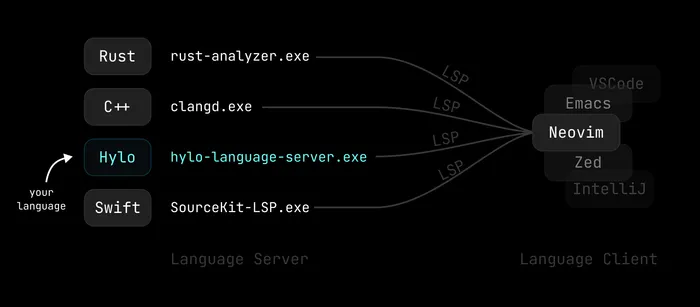
Because of this decoupling, we can implement our server in virtually any civilized programming language using a library that lets us handle requests and send back responses. It’s the best if we can use the same language as our compiler, because we can reuse parts of the compiler codebase as a library for different queries, like getting the list of symbols, or reporting diagnostics from the frontend.
Publishing Your Language Server
You can skip this step if you are just getting started, but the most convenient way to distribute our language server is through setting up a release process on GitHub. This process, at minimum should consist of the following steps:
- Build our language server (for each supported platform if needed, e.g. Windows/Linux/macOS, x64/arm64)
- Run our tests so we don’t accidentally publish a broken version
- Create a GitHub Release with the built binaries as (zipped) assets, with predictable names (e.g.
hylo-language-server-v1.2.3-linux-x64.zip)
We can configure GitHub Actions to run the above steps whenever we push a new tag. See Hylo’s release workflow as an example.
Integrating the Language Server
Now that our binary is accessible via GitHub Releases, we need to teach Neovim how to find and launch it.
There had been several implementations of language clients for Neovim (LanguageClient-neovim, coc.nvim, vim-lsc, ALE, just to mention a few). To address the demand, Neovim 0.5 introduced a built-in LSP client, which exposed low-level primitives, and largely streamlined the integration process: when introducing a new language, we only need to take care of downloading and starting the language server executable.
The easiest way to get a new language’s LSP working is to register a new LSP configuration in Neovim manually.
vim.lsp.config['hylo_ls'] = {    -- Command and arguments to start the server. (Server must be in PATH.)    cmd = { 'hylo-language-server', '--stdio' },    -- Filetypes to automatically attach to.    filetypes = { 'hylo' },    -- Sets the "workspace" to the directory where any of these files is found.    -- Files that share a root directory will reuse the LSP server connection.    -- Nested lists indicate equal priority, see |vim.lsp.Config|.    root_markers = { '.git' },    -- Specific settings to send to the server. The schema is server-defined.    -- Example: https://raw.githubusercontent.com/LuaLS/vscode-lua/master/setting/schema.json    settings = {}}
vim.lsp.enable('hylo_ls')
-- Add filetype detection for our languagevim.filetype.add({    extension = {        -- extension to filetype mapping        hylo = "hylo", -- matches `filetypes` in lsp config    },})
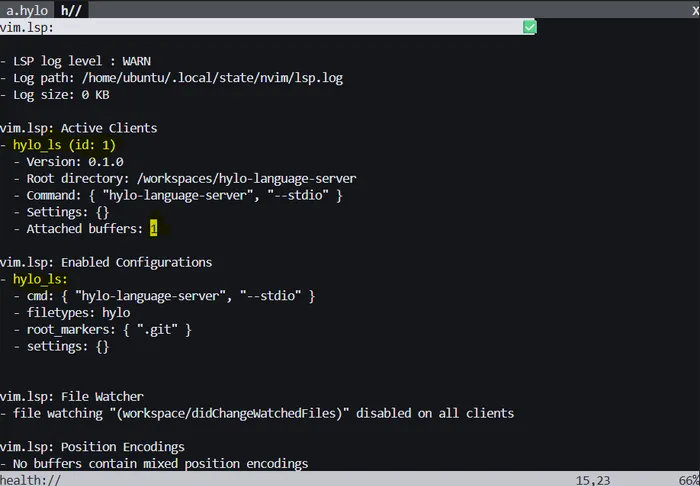
This should already be enough to get started. In fact, this is the ideal setup for developing your language server, you just need to make sure to add your built binary to the PATH before starting Neovim. You can verify that the language server is running by editing a .hylo file and checking the output of :LspInfo
Upstreaming the LSP Configuration
The method above is great while developing the server, but we don’t want to burden most of our users to know about the CLI flags and root markers. For “sufficiently popular” languages, Neovim maintains the nvim-lspconfig repository, which is responsible for storing these default configurations for each language server. We can fork this repository and add a new configuration for our language by looking at the existing configurations and the contributing guide. Hylo’s configuration is as simple as this:
---@type vim.lsp.Configreturn { cmd = { 'hylo-language-server', '--stdio' }, filetypes = { 'hylo' }, root_markers = { '.git' }, settings = {},}You can test this with the following Neovim configuration, pointing nvim-lspconfig to your local fork of the repository:
-- Bootstrap lazy.nvimlocal lazypath = vim.fn.stdpath("data") .. "/lazy/lazy.nvim"if not (vim.uv or vim.loop).fs_stat(lazypath) then    local lazyrepo = "https://github.com/folke/lazy.nvim.git"    local out = vim.fn.system({ "git", "clone", "--filter=blob:none", "--branch=stable", lazyrepo, lazypath })    if vim.v.shell_error ~= 0 then        vim.api.nvim_echo({            { "Failed to clone lazy.nvim:\n", "ErrorMsg" },            { out,                            "WarningMsg" },            { "\nPress any key to exit..." },        }, true, {})        vim.fn.getchar()        os.exit(1)    endendvim.opt.rtp:prepend(lazypath)
-- Add filetype detection for our languagevim.filetype.add({    extension = {        hylo = "hylo", -- matches `filetypes` in lsp/hylo_ls.lua    },})
require("lazy").setup({    {        "neovim/nvim-lspconfig",        -- Use a local override while developing the fork:        dir = "/path/to/nvim-lspconfig/",
        config = function()            -- Start the LSP for our language            vim.lsp.enable("hylo_ls") -- matches the file name of lsp/hylo_ls.lua        end    }})
Automating Language Server Installation through Mason
We have already simplified configuring the LSP, but downloading the server and making it available on the PATH is still more complicated for our end users than it needs to be. Luckily, Neovim has a great package manager for language servers, debug adapters and code formatters called Mason.
To add our language server to Mason, we need to fork the mason-registry, and add a package according to their contributing guide. It can be as simple as downloading a NodeJS package, but you can also specify different archives for different platforms, containing pre-built binaries like in Hylo’s package.yaml:
name: hylo-language-serverdescription: LSP implementation for the Hylo programming language.homepage: https://github.com/hylo-lang/hylo-language-serverlicenses:  - MITlanguages:  - Hylocategories:  - LSP
source:  id: pkg:github/hylo-lang/hylo-language-server@v0.0.10  asset:    # Define assets for each supported platform (Linux/macOS/Windows, x64/arm64)    - target: linux_x64      file: hylo-language-server-linux-x64.zip      bin: hylo-language-server    - target: win_x64      file: hylo-language-server-windows-x64.zip      bin: hylo-language-server.exe      ...bin:  # Map the binary name to the asset's binary name  hylo-language-server: "{{source.asset.bin}}"
neovim:  # Link to the lspconfig name we defined earlier  lspconfig: hylo_ls
If you have a more complex installation process, you can also write installation scripts per platform.
While developing our Mason registry fork, we can add the alternative local registry as follows:
...require("lazy").setup({    {        "neovim/nvim-lspconfig",        -- Use a local override while developing the fork:        dir = "/path/to/nvim-lspconfig/",
        dependencies = {            "williamboman/mason.nvim",            "williamboman/mason-lspconfig.nvim",        },        config = function()            vim.lsp.enable("hylo_ls")
            -- Set up Mason            require("mason").setup {                -- Use a local registry override while developing the fork:                registries = {                    "file:/path/to/mason-registry/"                }            }
            -- Ensure our language server is installed and started automatically            require("mason-lspconfig").setup({                ensure_installed = {                    "hylo_ls" -- matches the file name of lsp/hylo_ls.lua                },                automatic_enable = true            })        end    }})
After changing version of dependencies, we may need to run this command to update them:
:Lazy sync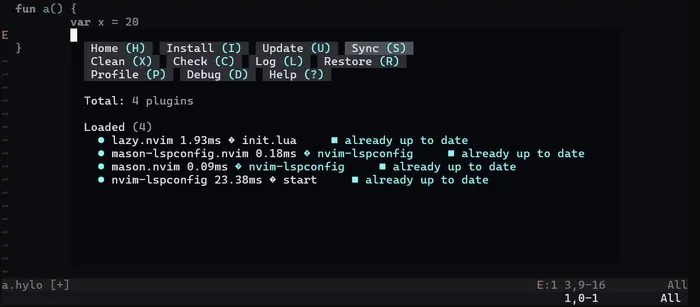
We should be able to see our language server being shown in the Mason window:
:Mason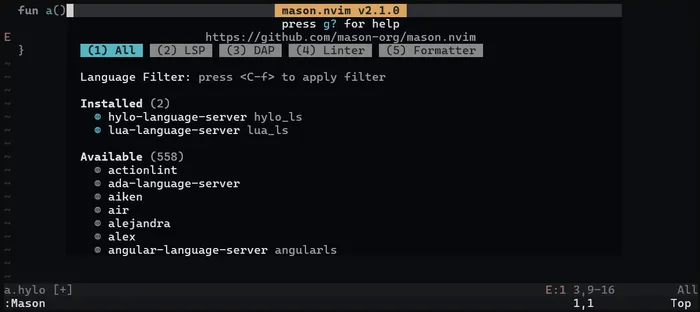
Upstreaming File Type Detection
Remember that we had to add this snippet in our init.lua?
vim.filetype.add({ extension = { hylo = "hylo", -- matches `filetypes` in lsp/hylo_ls.lua },})This is not needed for existing major languages because Neovim has builtin file type detection for them in its core runtime. To add support for our language we need to fork Vim. Once merged into Vim, our changes will eventually get propagated to Neovim, but we can speed this up by submitting a PR to Neovim as well.
- In the Vim PR:
- Add an entry for your language in
runtime/autoload/dist/ft.vim...# Hurl"hurl": "hurl",# Hylo"hylo": "hylo",... - Add a test case for your language in
src/testdir/test_filetype.vim...hurl: ['file.hurl'],hy: ['file.hy', '.hy-history'],hylo: ['file.hylo'],...
- Add an entry for your language in
- In the Neovim PR:
- Add an entry for your language in
runtime/lua/vim/filetype.lua...hy = 'hy',hylo = 'hylo',iba = 'ibasic',... - Add a test case for your language in
test/old/testdir/test_filetype.vim...\ 'hy': ['file.hy', '.hy-history'],\ 'hylo': ['file.hylo'],\ 'hyprlang': ['hyprlock.conf', 'hyprland.conf', 'hypridle.conf', 'hyprpaper.conf', '/hypr/foo.conf'],... - Add a reference to the merged Vim PR in the Neovim PR description for context.
- Add an entry for your language in
Once both PRs are merged, our language is ready to be used with the latest dev build of Neovim. It may take a while until all your users upgrade their Vim version, so it’s best to keep the instructions for adding file type detection in the Neovim configuration until then.
Conclusion and next steps
If everything goes well, your users will just need to add the language as any other language server through Mason, and everything will work out of the box. Otherwise, you can use a subset of the above steps, and leave the rest to your users as manual configuration steps.
I managed to get all this working for the Hylo language thanks to the kind support of the Neovim and Mason maintainers. You can check out how simple the installation instructions became in the Neovim section of our docs.
Eventually, we will need to write a tree-sitter grammar, so that more Neovim functionality can be unlocked, and to ensure some highlighting while our language server is starting up (or god forbid, after it crashed). We should also look into native Vim syntax highlighting support, as well as implementing some editor-specific actions such as commenting out lines and smart indentation on newline. But until then, let’s get coding, and have some fun!
The related PRs: